Trimmy ✂️ - “Paste once, run once” — flattens multi-line shell snippets so they execute
"Paste once, run once." — Trimmy flattens those multi-line shell snippets you copy so they actually paste and run.
Install via Homebrew:brew install --cask steipete/tap/trimmy
What it does
Lives in your macOS menu bar (macOS 15+). No Dock icon.
Watches the clipboard and, when it looks like a shell command, removes newlines (respects \ continuations) and rewrites the clipboard automatically.
Strips leading shell prompts (#/$) when the line looks like a command, while leaving Markdown headings untouched.
Aggressiveness is configurable separately for regular apps and terminals (defaults: Low for general apps, Normal for terminals), with a “None” option to disable auto-trim in regular apps.
Detects terminal apps (Terminal/iTerm/Ghostty/Warp/WezTerm/Alacritty/Hyper/kitty) and applies the terminal-specific aggressiveness when context-aware trimming is enabled.
Optional "Keep blank lines" so scripts with intentional spacing stay readable.
Optional "Remove box drawing chars (│┃)" to strip prompt-style gutters (any count, leading or trailing) and collapse the leftover whitespace.
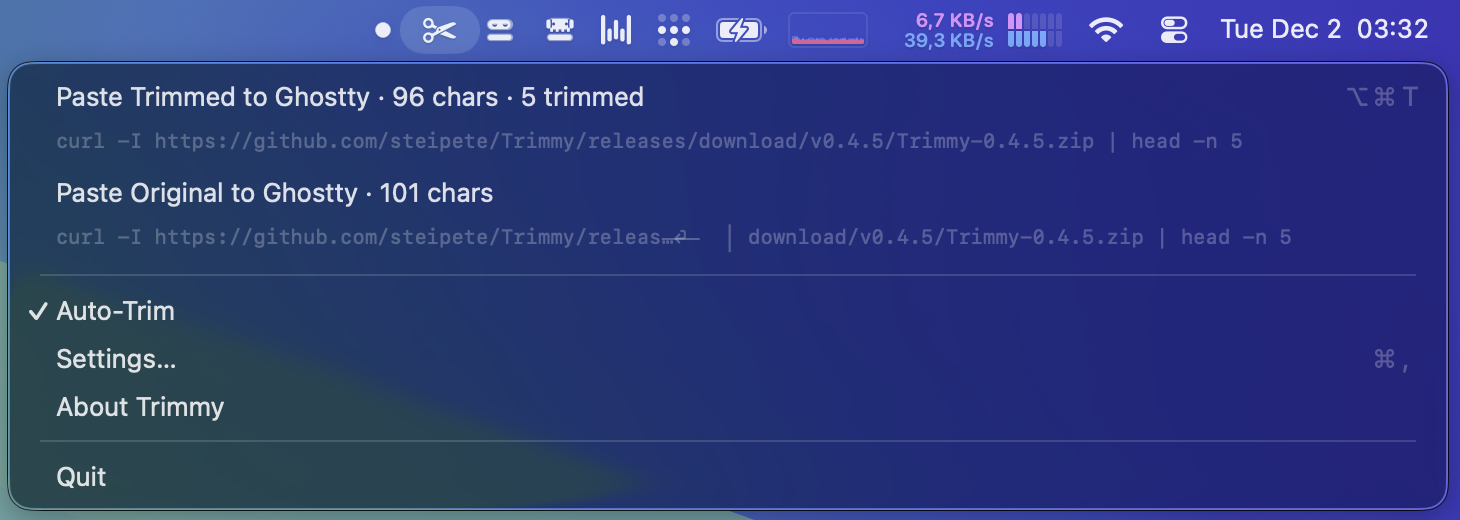
"Paste Trimmed" button + hotkey trims on-the-fly and pastes without permanently altering the clipboard (uses High aggressiveness); shows the target app (e.g., “Paste Trimmed to Ghostty”) and strikes out removed chars in the preview.
"Paste Original" button + hotkey pastes the untouched copy even after auto-trim.
Optional “Paste Reformatted Markdown” menu action reflows wrapped Markdown paragraphs/bullets/headings while preserving blank lines and fenced code blocks.
Optional "Launch at login" toggle (macOS 13+ via SMAppService).
Auto-update via Sparkle (auto-check + auto-download; menu shows “Update ready, restart now?” once downloaded).
Uses a marker pasteboard type to avoid reprocessing its own writes; polls with a lightweight timer and a small grace delay to catch promised pasteboard data.
Safety valve: skips auto-flatten if the copy is more than 10 lines (even on High) to avoid mangling big blobs.
Normal — README/blog-ready: handles typical multi-line commands with flags.
Before:
plaintext
kubectl get pods \
  -n kube-system \
  | jq '.items[].metadata.name'
After: kubectl get pods -n kube-system | jq '.items[].metadata.name'
High (eager) — flattens almost anything command-shaped, plus the manual “Paste Trimmed” hotkey always uses this level.
Before:
plaintext
echo "hello"print status
After: echo "hello" print status
Prompt cleanup — copies that start with # or $ are de-promoted when they look like shell commands, e.g. # brew install foo → brew install foo; Markdown headings like # Release Notes remain untouched.
Terminals:
Uses its own Low/Normal/High selector (default: Normal) whenever a terminal app is detected and Context-aware trimming is enabled.
Quick start
Get the precompiled binary from Releases or install via Homebrew:
Launch: open Trimmy.app (or add to Login Items). Menu shows Auto-Trim toggle, Aggressiveness submenu, Keep blank lines toggle, Paste Trimmed/Paste Original actions, optional Paste Reformatted Markdown, and a last-action status.
Headless trimming (CLI)
Use the bundled CLI to trim text without launching the UI:
plaintext
swift run TrimmyCLI --trim /path/to/file --aggressiveness high --json